A tile atlas is an image that contains several smaller images. Use a tile atlas to improve application framerate by decreasing the number of texture switches that your application must make during runtime.
To use a tile atlas:
- Create a tile atlas in a third-party application.
When creating a tile atlas keep in mind:- The smaller the tile atlas is, the better.
- Pack the images in a tile atlas as close together as possible.
- A tile atlas can contain images of varying sizes.
- In Kanzi Studio in the 资产 (Assets) click 导入资产 (Import Assets) and import the tile atlas.
For example, you can import this tile atlas.

- Import and configure the material that enables you to set which part of the tile atlas you want to draw:
- Download the TileAtlas.zip file, which contains the TileAtlas material type.
- In Kanzi Studio in the 素材库 (Library) right-click 材质和纹理 (Materials and Textures), select 从磁盘加载材质类型 (Load Material Type From Disk), and import the TileAtlas material type.

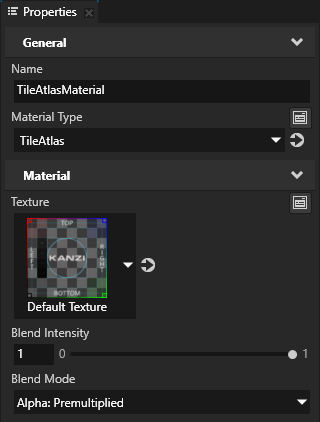
- In the 素材库 (Library) > 材质和纹理 (Materials and Textures) > 材质 (Materials) select the TileAtlasMaterial material and in the 属性 (Properties) set the 混合模式 (Blend Mode) property to 阿尔法: 预乘 (Alpha: Premultiplied).
The fragment shader for this material type expects premultiplied alpha so that it can blend the source fragment with the destination framebuffer.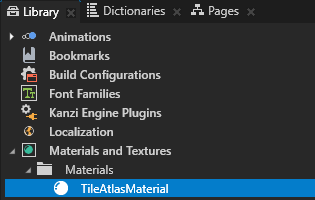
- In the 素材库 (Library) 按下 Alt 并右键点击 材质和纹理 (Materials and Textures), select 材质笔刷 (Material Brush), and in the 属性 (Properties) set the 材质 (Material) property to the TileAtlasMaterial material.
You use this brush to draw images from a tile atlas.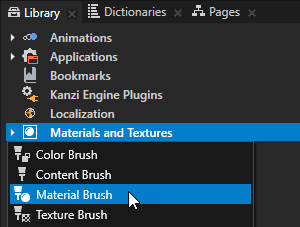
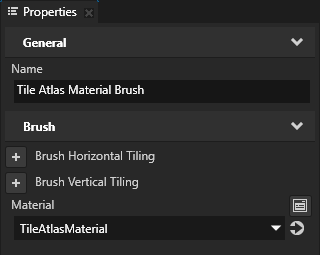
- In the 工程 (Project) create or select a node that you want to use to show an image from a tile atlas, in the 属性 (Properties) add the 前景笔刷 (Foreground Brush) property, and set it to the 材质笔刷 (Material Brush) that you created.
For example, create an 2D 空节点 (Empty Node 2D) node.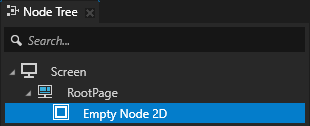
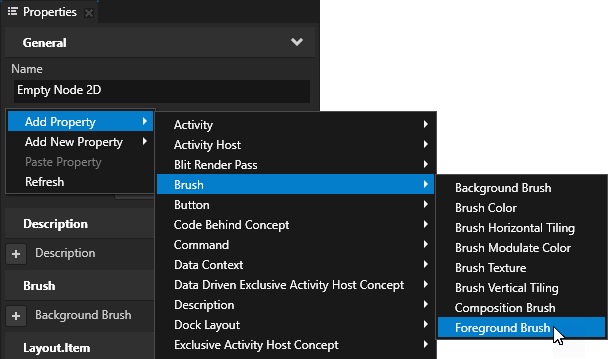
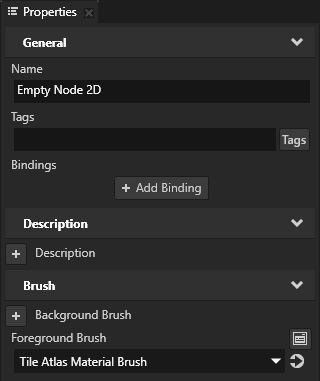
- In the 素材库 (Library) > 材质和纹理 (Materials and Textures) > 材质 (Materials) select the TileAtlasMaterial material and from the 属性 (Properties) drag these properties to the node that you created:
- 纹理 (Texture)
- 混合强度 (Blend Intensity)
- OffsetInTileAtlas
- PrimaryColor
- SecondaryColor
- TileAtlasSize
- UseSecondaryColor
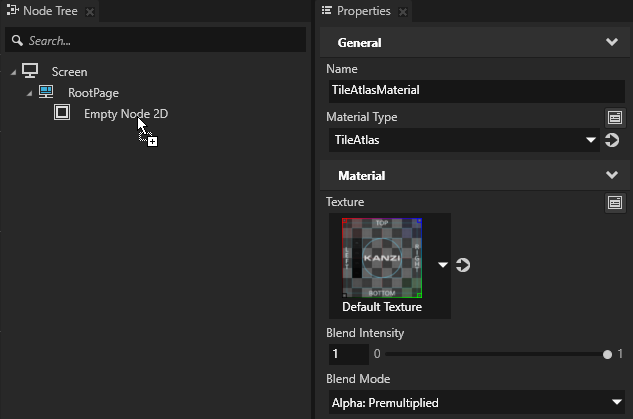
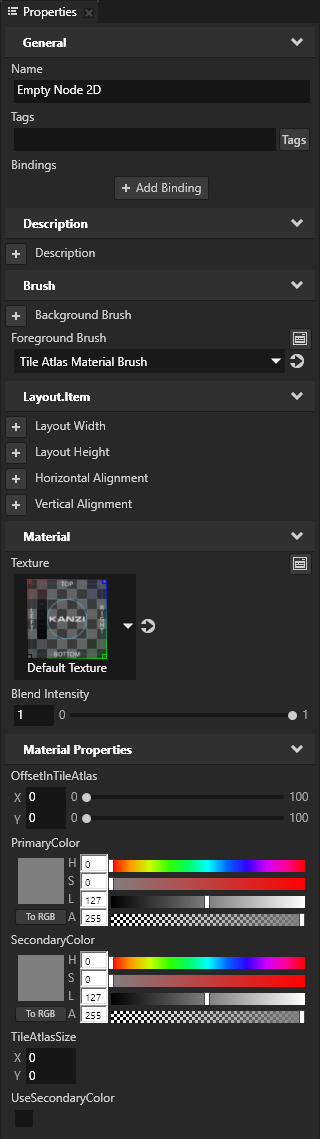
- In the 工程 (Project) select the node that you created and set these properties:
- 布局宽度 (Layout Width) to the width and 布局高度 (Layout Height) to the height of the image that you want to use from the tile atlas
Measure the size of each image in an image editing tool. The shader of the TileAtlasMaterial material takes the size of the image from these properties.
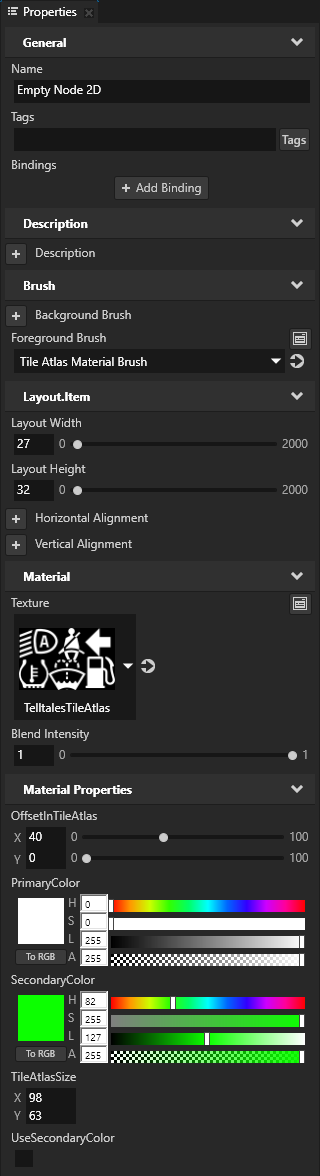
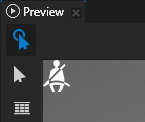
For example, to draw , the second image from the TelltalesTileAtlas texture, set:
- 布局宽度 (Layout Width) to 27
- 布局高度 (Layout Height) to 32
Image 布局宽度 (Layout Width) 布局高度 (Layout Height) 
40 31 27 32 
26 29 
30 30 
38 31 
30 31 - 纹理 (Texture) to the tile atlas that you want to use
For example, set the property to the TelltalesTileAtlas texture. - OffsetInTileAtlas X and Y property fields to the distance in pixels from the top left corner of the image in the tile atlas that you want to show in this node
For example, to draw, the second image from the TelltalesTileAtlas texture, set:- X to 40
- Y to 0
Image X Y 0 0 40 0 68 0 0 32 30 32 68 29 - TileAtlasSize X property field to the width and Y property field to the height of the tile atlas that you want to use
For example, if you are using the TelltalesTileAtlas texture, set:- X to 98
- Y to 63
- PrimaryColor to the primary color that you want to use to draw the image
For example, set the color to white. - (可选) SecondaryColor to the secondary color that you want to use to draw the image
To use the secondary color, set the UseSecondaryColor property to enabled. Use these properties when you want to use a different color for the second state of that image.
For example, to apply the color that you set in the SecondaryColor property, you can use a 状态机 (State Manager) to set the value of the UseSecondaryColor property.
建议You can use a tile atlas to show a different image for different states of a telltale. Create a 状态机 (State Manager) and in each state set the properties that change between the states, such as OffsetInTileAtlas and PrimaryColor. See 使用状态机 and 教程:创建组合仪表指示灯.
- 布局宽度 (Layout Width) to the width and 布局高度 (Layout Height) to the height of the image that you want to use from the tile atlas
